Handheld Network Settings
STEP 1: Close out of the SpotOn App by selecting the circle on the bottom of the screen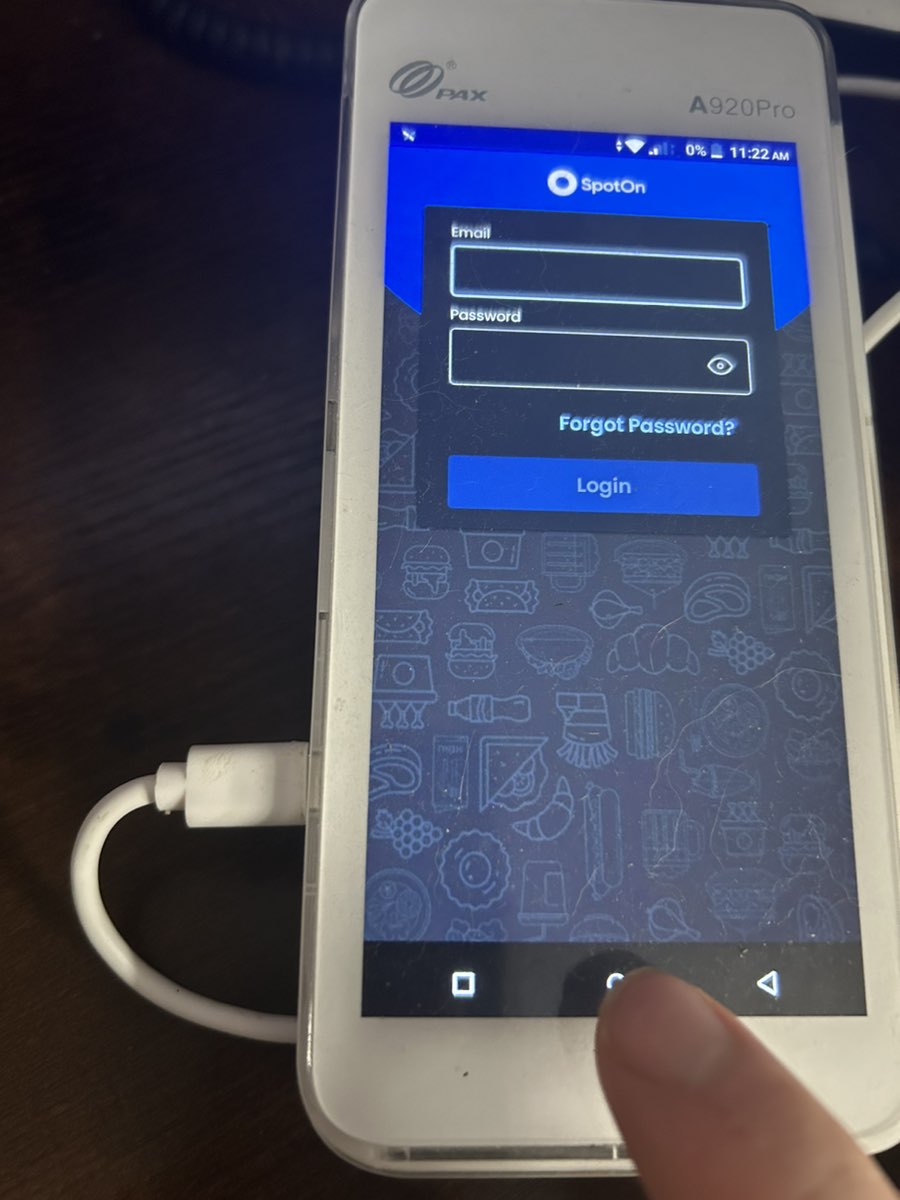
STEP 2: On the home screen, select "Settings."
STEP 3: Under the "Settings" screen, select "Network and Internet."
STEP 4: To turn Wi-Fi on or off, select the button. If the button is green, Wi-Fi is on. If the button is gray, it is off. Select the green arrow on the top right to go back to the "Settings" screen.
STEP 4A: To connect to a Wi-Fi network that you are not connected to, touch the word "Wi-Fi" on the screen.
STEP 4B: Select the Wi-Fi network you wish to connect to
STEP 4C: Enter the password, and select "Connect."
STEP 5: Select "Mobile Network under the "Settings" screen.
STEP 6: If the "Mobile data" button is green, data is on. Gray means it's off. To toggle between on and off, select the "Mobile Data" button. The same goes for the other options on this screen. When finished, select the green arrow on the top right to go back.
STEP 7: Select the circle at the bottom of the screen to go back to the Home Screen.
STEP 8: Select the SpotOn App to Open SpotOn.
Related Articles
Handheld Mobile & Cellular Settings
STEP 1: Close out of the SpotOn App by selecting the circle on the bottom of the screen STEP 2: On the home screen, select "Settings." STEP 3: Under the "Settings" screen, select "Network and Internet." STEP 4: Select "Mobile Network under the ...Handheld Wi-Fi
STEP 1: Close out of the SpotOn App by selecting the circle on the bottom of the screen STEP 2: On the home screen, select "Settings." STEP 3: Under the "Settings" screen, select "Network and Internet." STEP 4: To turn Wi-Fi on or off, select the ...Sugar Hill Handheld
Press 0 six times, and then select the blue check mark Type in the above credentials. Email: sugarhillpos@yahoo.com Password: spotonpos Select Sugar Hill Sub & Deli Select Sugar Hill Sub & Deli Again Select A920 1 Now you're back on the main screenTurn off Tip Suggestion On Stand Alone
1. Select "FUNC" and then "Settings" 2. For the Password enter today's date (DD/MM/YYYY) For example 03/31/2024 3. Select System Settings 4. Turn The Tip suggestion Option Off 5. Select the back arrow until you are back at the main screen 6. Select ...Resetting EMV Chip Reader
1) To power cycle the chip reader, simply unplug the the cable that says "POWER" in the diagram below. DO NOT touch the cable labelled "NETWORK". 2) Wait 5 seconds and then plug the "POWER" cable back in. That's all that needs to be done!