Handheld Wi-Fi
STEP 1: Close out of the SpotOn App by selecting the circle on the bottom of the screen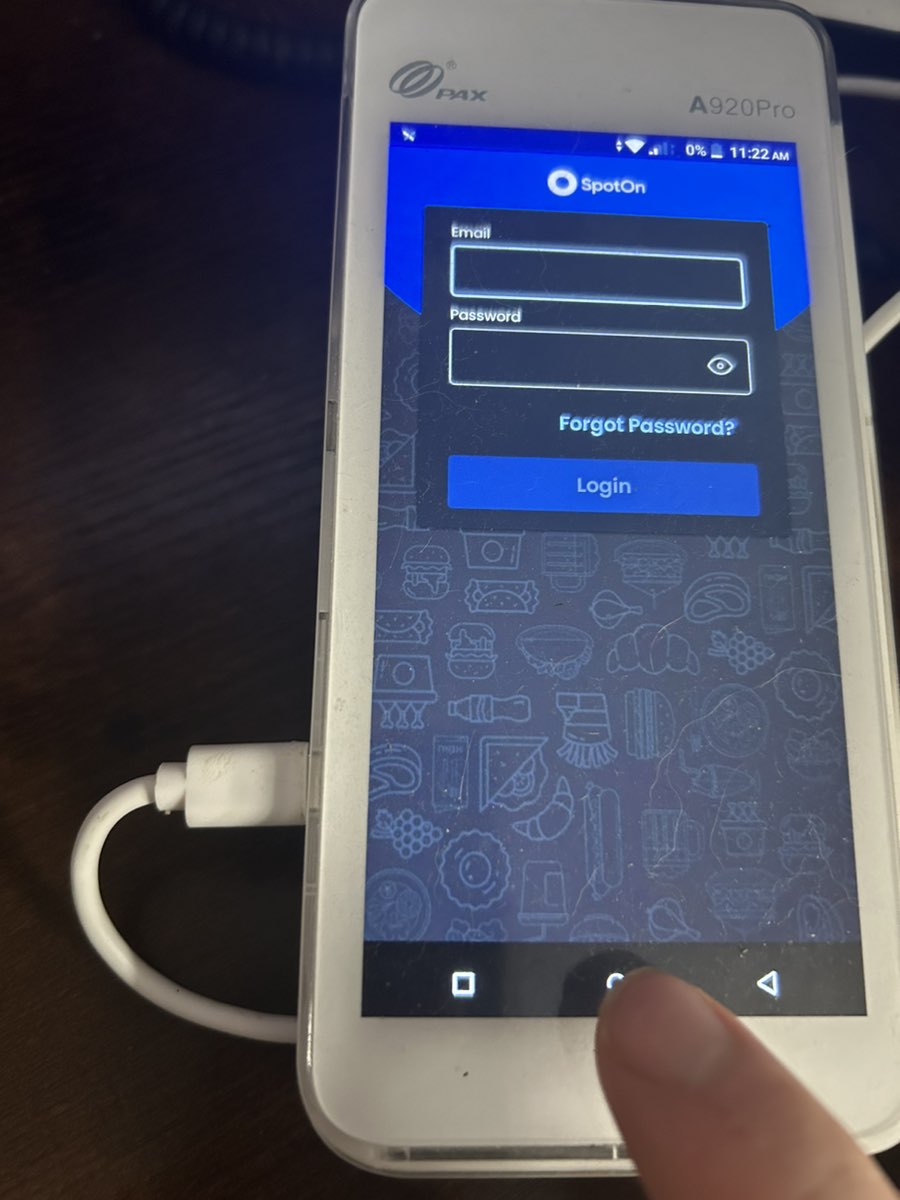
STEP 2: On the home screen, select "Settings."
STEP 3: Under the "Settings" screen, select "Network and Internet."
STEP 4: To turn Wi-Fi on or off, select the button. If the button is green, Wi-Fi is on. If the button is gray, it is off. Select the green arrow on the top right to go back to the "Settings" screen.
STEP 4A: To connect to a Wi-Fi network that you are not connected to, touch the word "Wi-Fi" on the screen.
STEP 4B: Select the Wi-Fi network you wish to connect to
STEP 4C: Enter the password, and select "Connect."
STEP 5: Select the circle at the bottom of the screen to go back to the Home Screen.
STEP 6: Select the SpotOn App to Open SpotOn.
Related Articles
Handheld Network Settings
STEP 1: Close out of the SpotOn App by selecting the circle on the bottom of the screen STEP 2: On the home screen, select "Settings." STEP 3: Under the "Settings" screen, select "Network and Internet." STEP 4: To turn Wi-Fi on or off, select the ...Sugar Hill Handheld
Press 0 six times, and then select the blue check mark Type in the above credentials. Email: sugarhillpos@yahoo.com Password: spotonpos Select Sugar Hill Sub & Deli Select Sugar Hill Sub & Deli Again Select A920 1 Now you're back on the main screenHandheld Mobile & Cellular Settings
STEP 1: Close out of the SpotOn App by selecting the circle on the bottom of the screen STEP 2: On the home screen, select "Settings." STEP 3: Under the "Settings" screen, select "Network and Internet." STEP 4: Select "Mobile Network under the ...