How to Set Up a POS Station on Your Computer
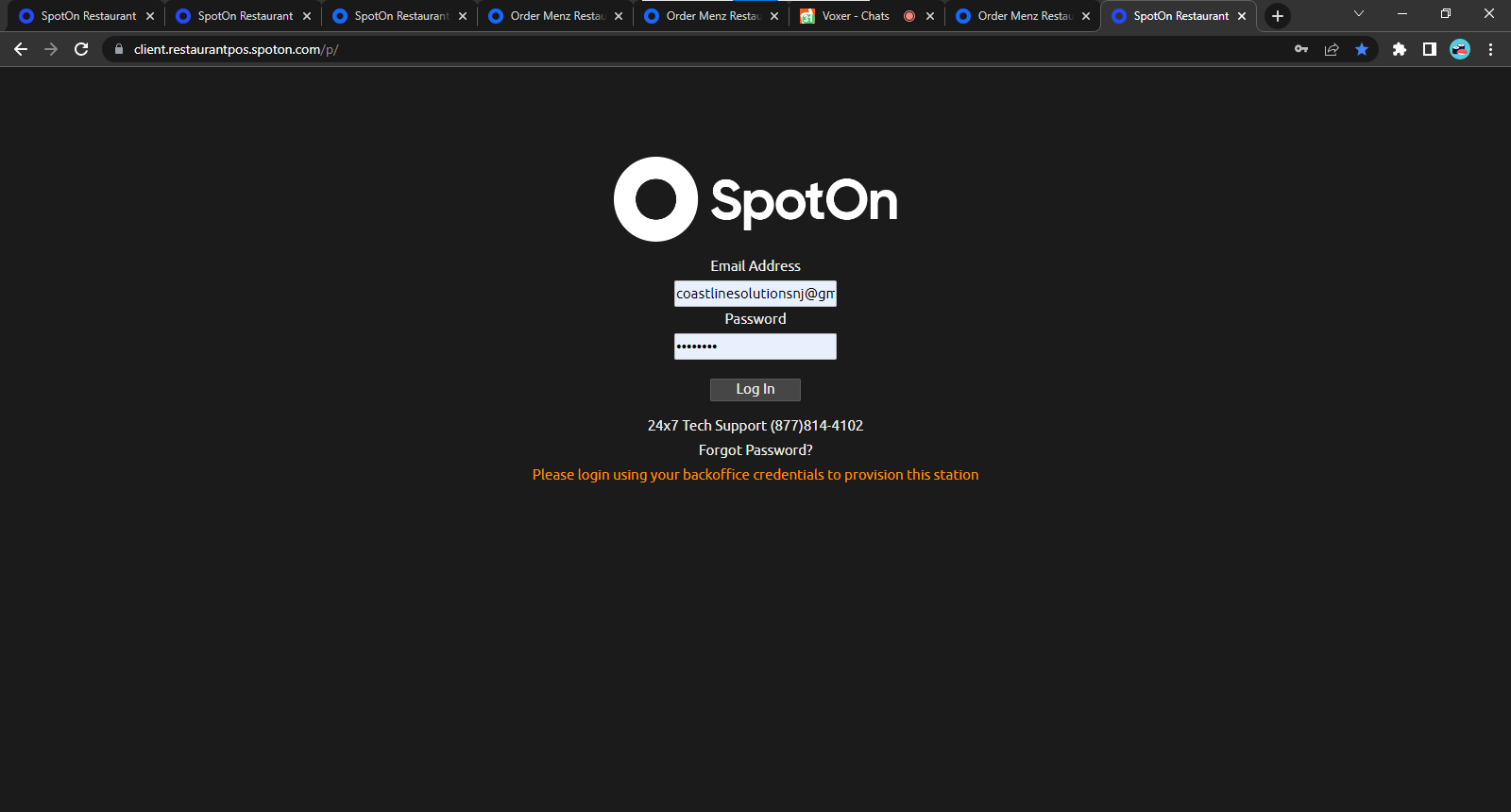
Step 1: Go to the following website: client.restaurantpos.spoton.com/p and type in your email and password. Select Log In.
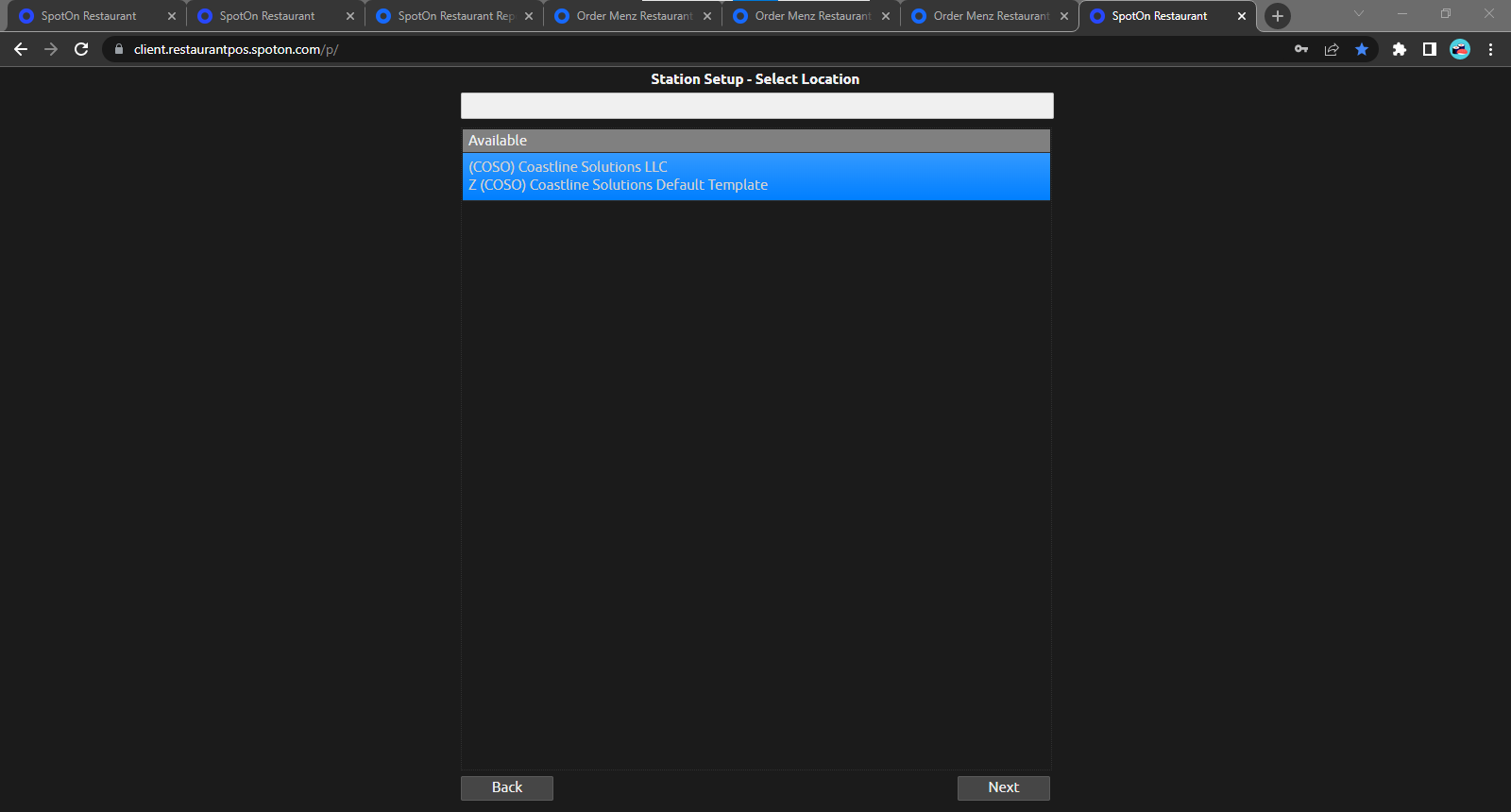
Step 2: Click on your location name and select 'Next."

Step 3: Click on your location name again and select "Next."
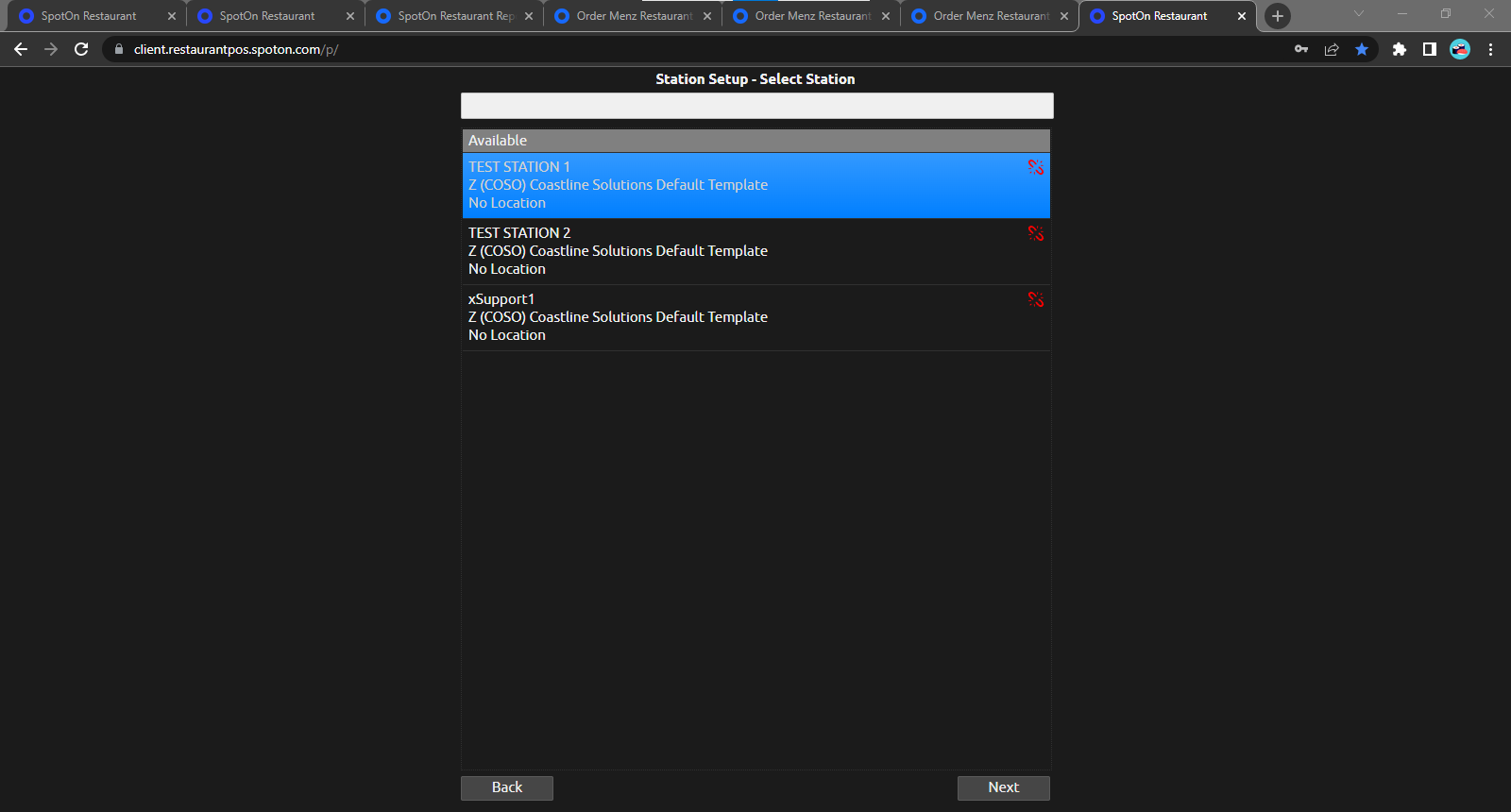
Step 4: Select a Test Station and select "Next."
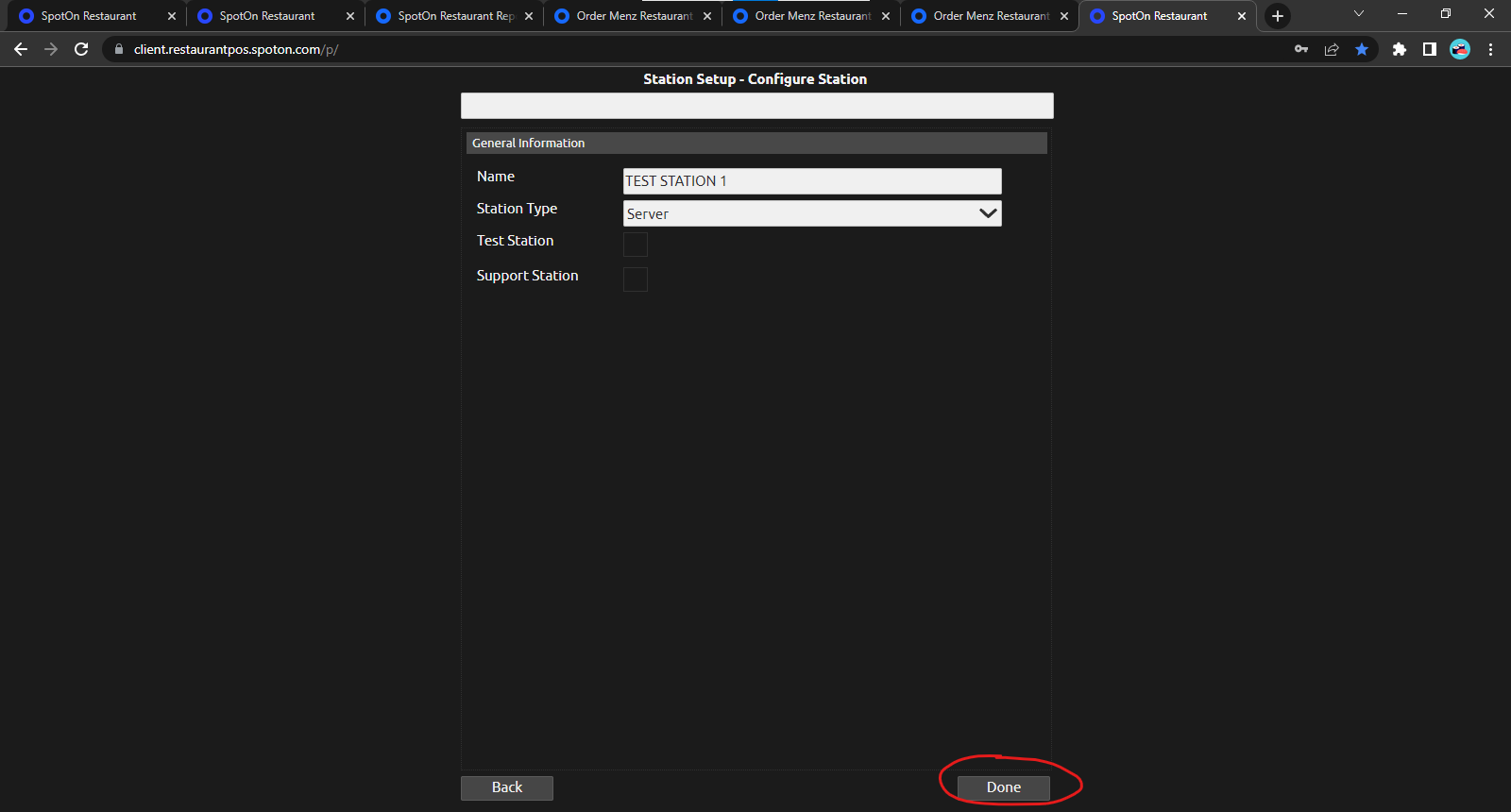
Step 5: Select "Done." You do not need to adjust anything on this screen.
Step 6: The POS station is ready to use!
Related Articles
Adding An Employee to the Back Of House
1) To add an Employee to the back of the house in SpotOn, First Click on the Users section on the home screen of the Back Of House. 2) Then click the "+" Icon at the bottom of the right side of the screen where the list of current employees are. 3) ...How to Change Your Temporary SpotOn Back of House Password
Step 1: Check your email for the temporary password that was sent to your email. It should be from "noreply@spoton.com." You may see the sender as "noreply." If you don't see the email in your Inbox, be sure to check spam also. Step 2: Go to this ...Delivery Setup for Durazzo's
Making a Delivery Order: 1) Select New order select “Change Order Type” and choose delivery 2) Add items to the order from the menu screen and Press "Customer Info" 4) Enter in the customer information “First Name” Will be the Address “Last Name” ...End of Day History Instructions
https://help.spoton.com/space/SK/1894908236/End+of+Day+Procedure+%7C+SpotOn+Restaurant+FOH#End-of-Day-HistoryEdit Modifier Prices
1.) Log into the Back of House 2.) Select Modifier Groups 3.) Select a group and select edit modifiers 4.) Click on the modifiers that need to be adjusted and edit the Price 5.) Click On the Modifier Group Tab to go back