Adding An Employee to the Back Of House
1) To add an Employee to the back of the house in SpotOn, First Click on the Users section on the home screen of the Back Of House. 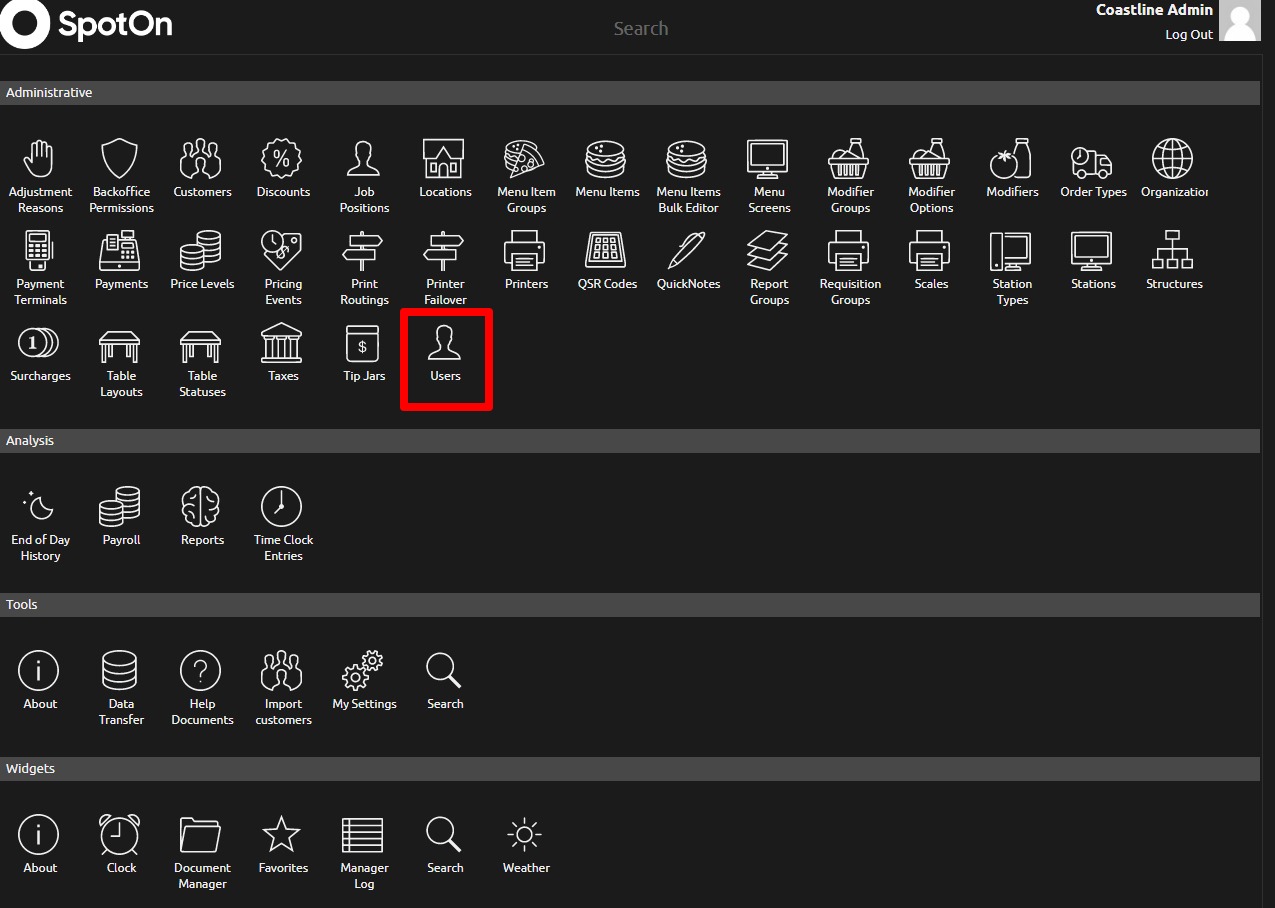
2) Then click the "+" Icon at the bottom of the right side of the screen where the list of current employees are.
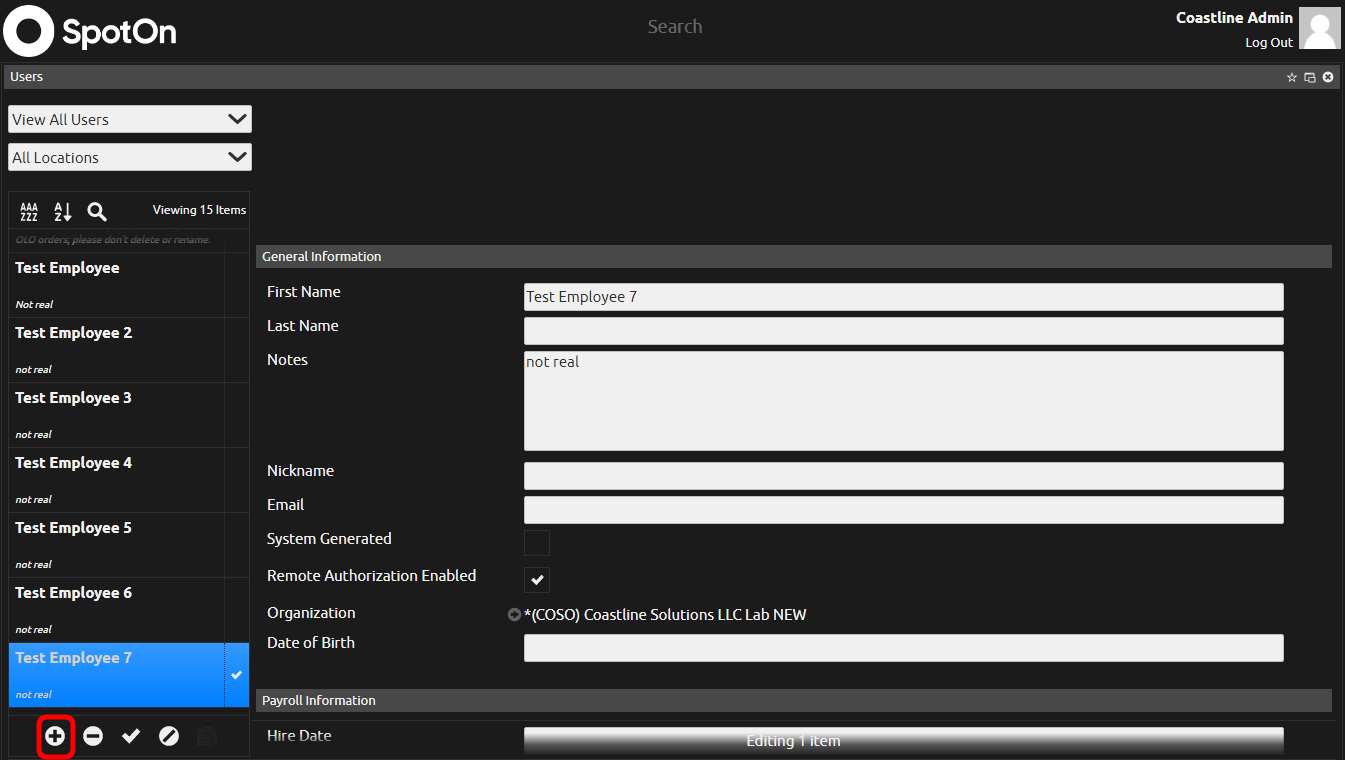
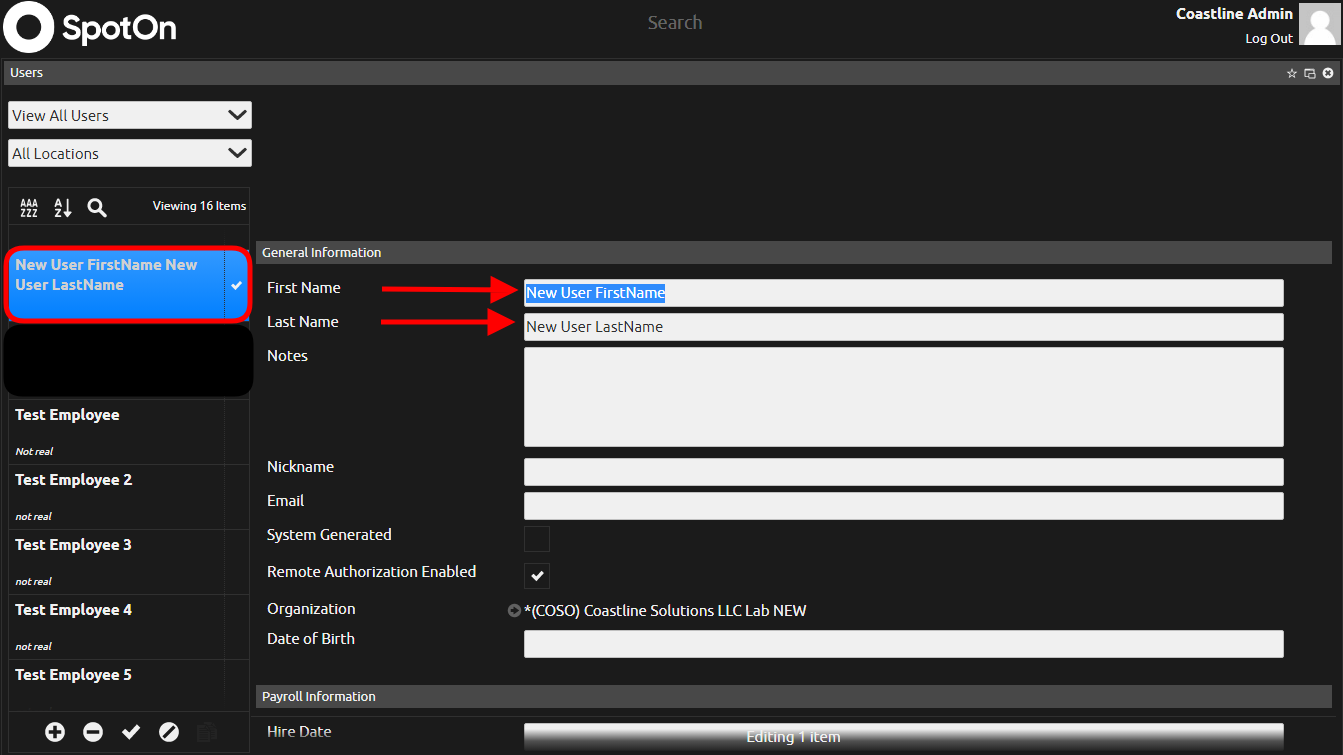
3) After clicking the "+" icon, a new employee will be created, you can then edit the name of your employee to the right.
4) When you scroll to the bottom of the selected employee's page, you will see a button that says "Edit Assignments" click on it.
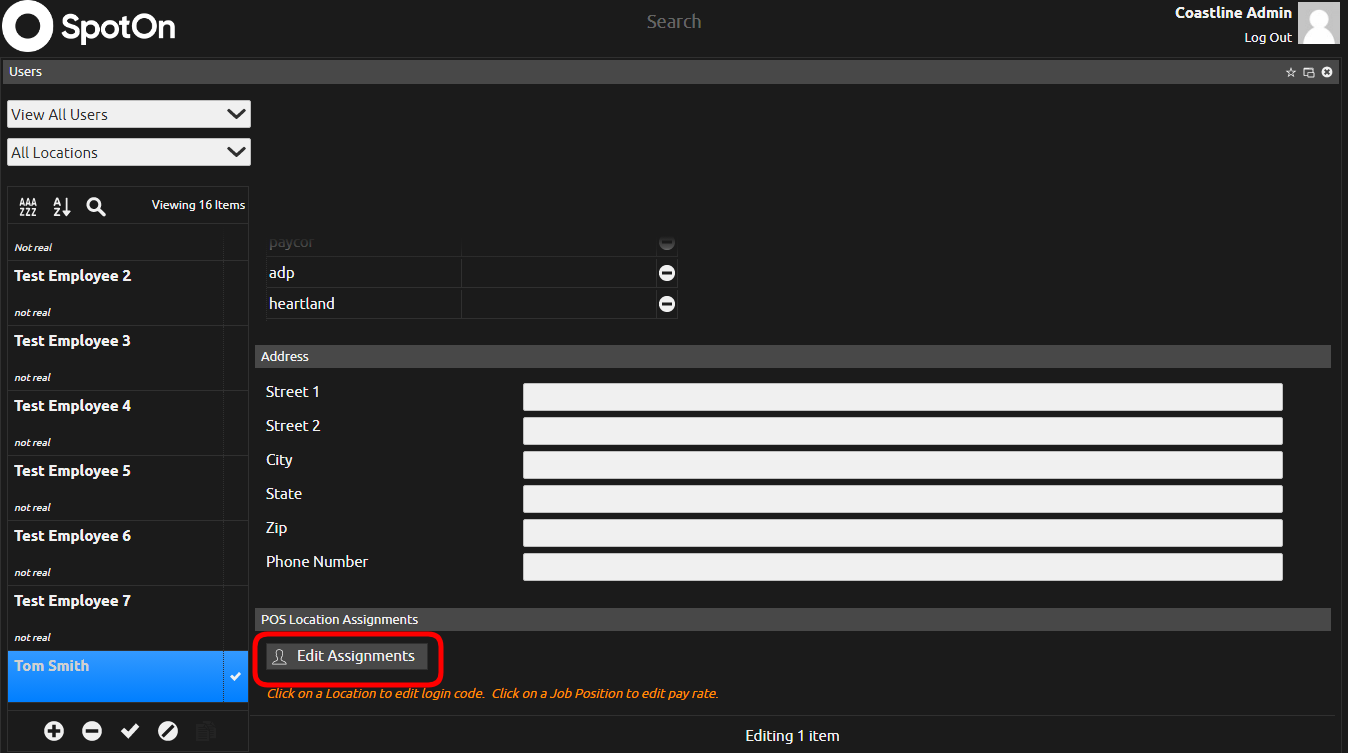
5) Once you click on that, it will bring up the name of the employee you selected, click on the employee and a list of 2 option will appear, click "Add Location"
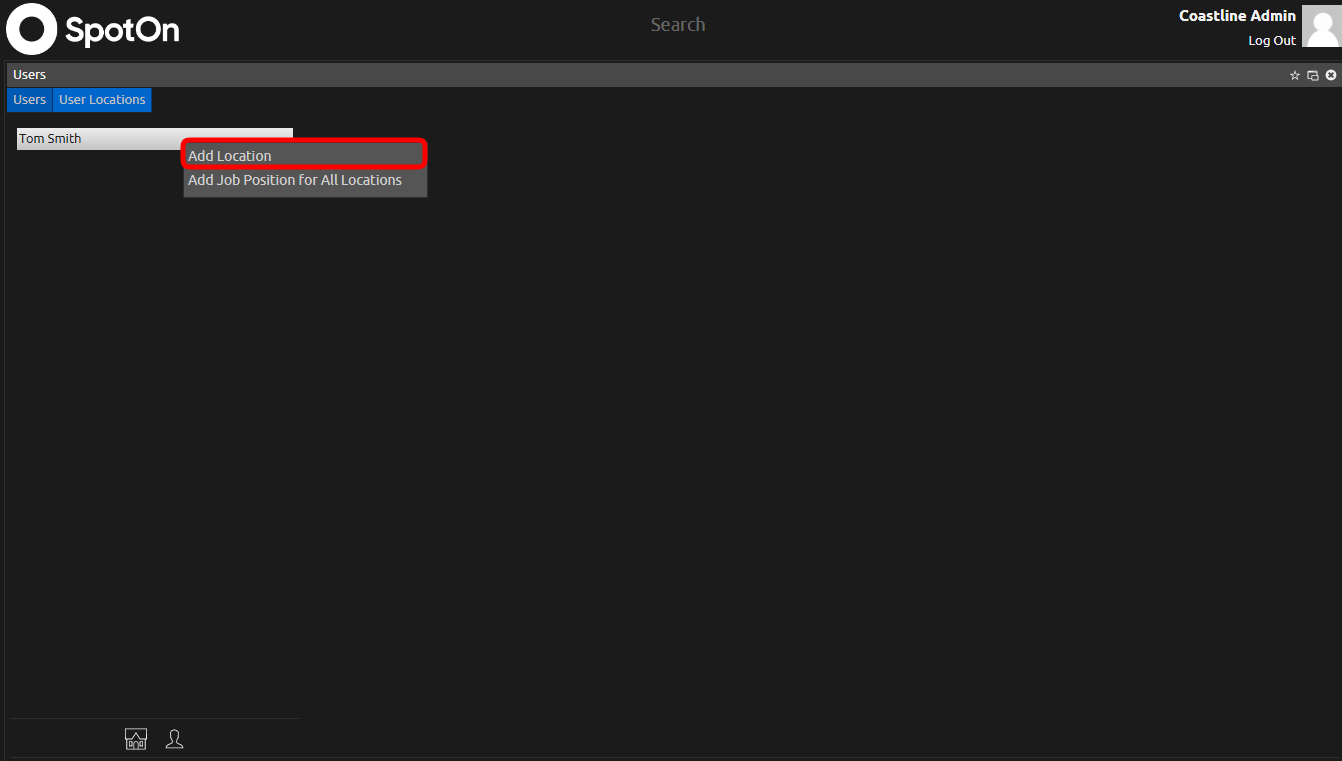
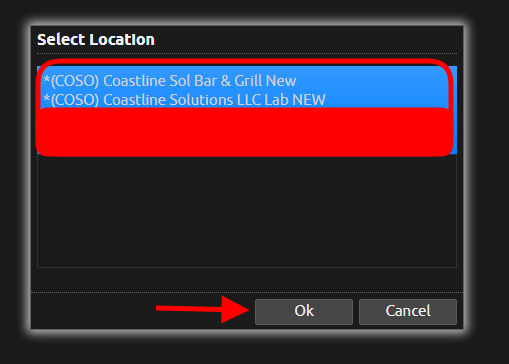
6) You will then select the location that you want the employee to be assigned to (In the case of Multiple Restaurants) then Click "Ok"
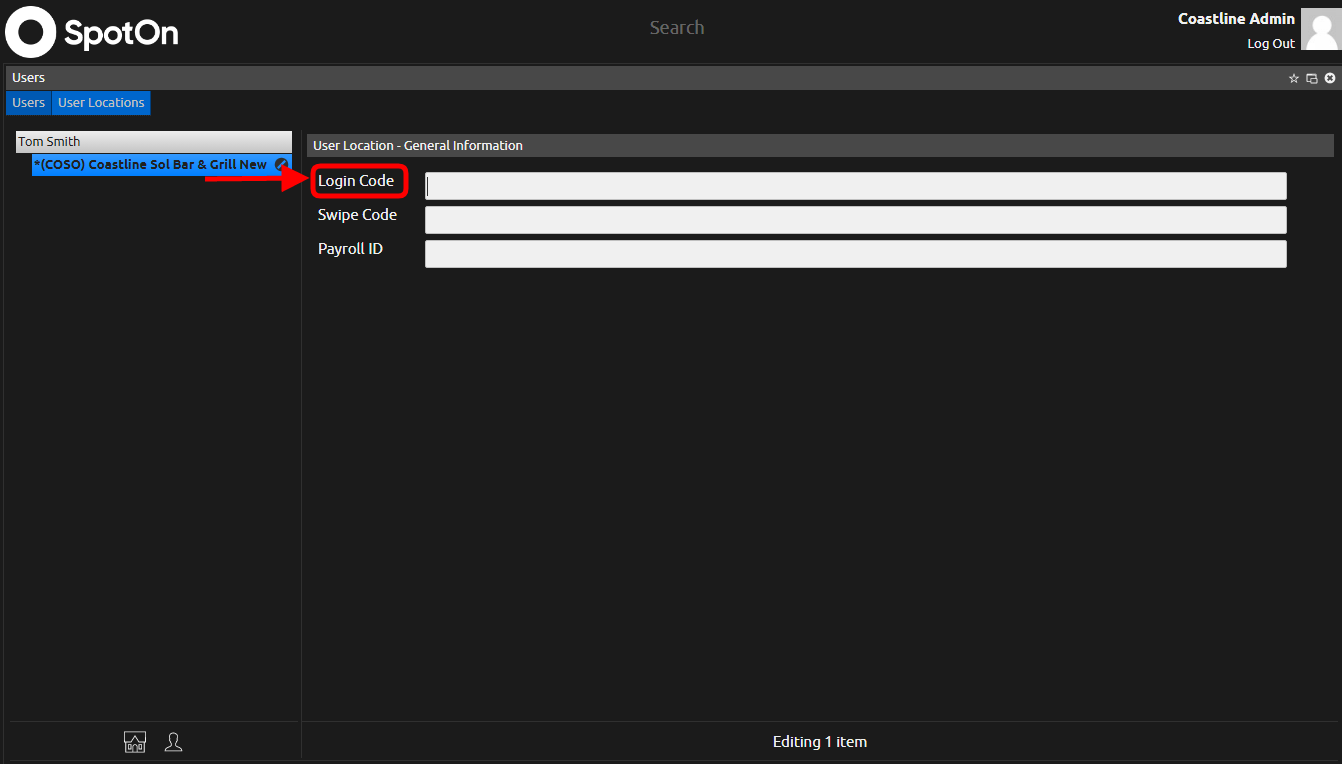
7) You will then be able to Type in a 4 digit PIN number for your employee where it says "Login Code."
7a) If you use swipe cards at your location, you can enter in the number on the back of the swipe card, and enter it where it says "Swipe Code"
8) At this point, you will be able to add a job position by clicking on the location underneath an employee's name.
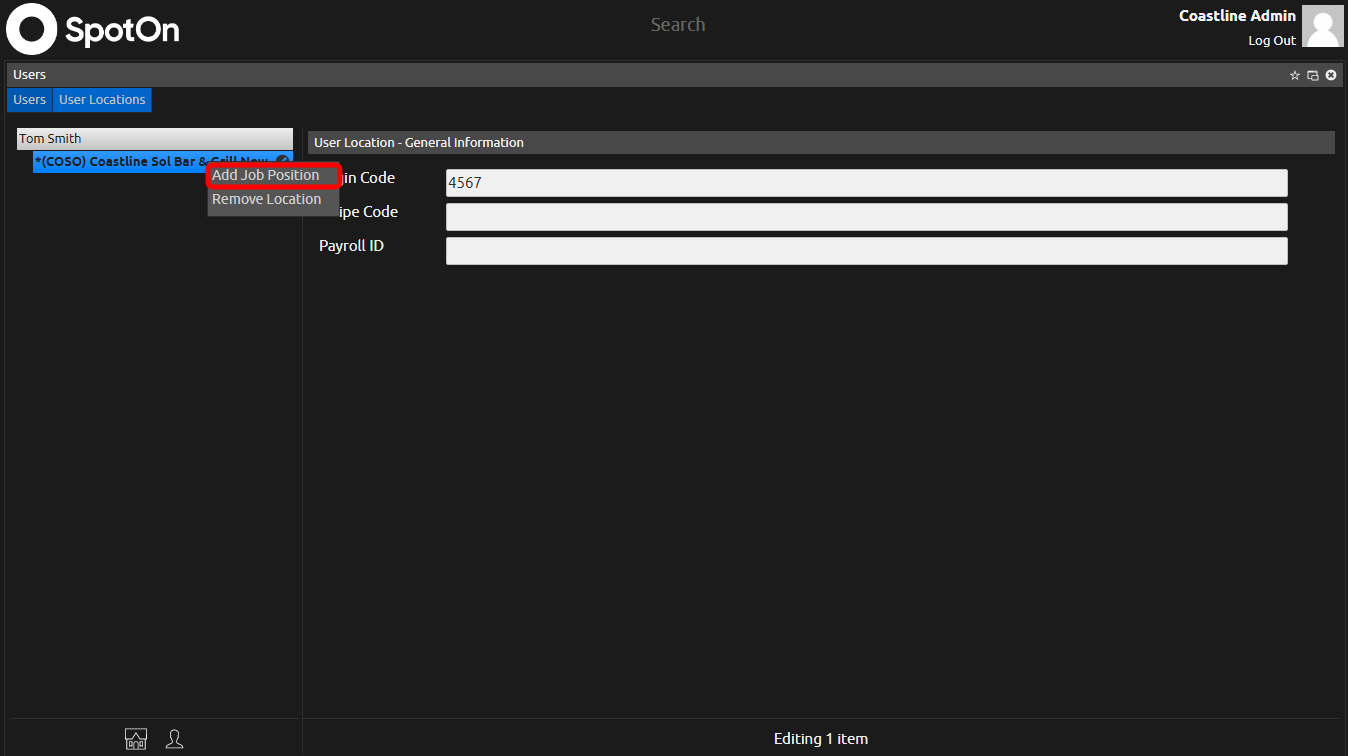
9) From there, you can choose which position an employee can take.
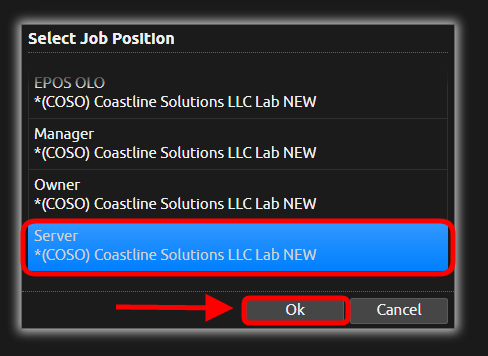
10) From here, your employee is ready to clock in!
Related Articles
How to Change Your Temporary SpotOn Back of House Password
Step 1: Check your email for the temporary password that was sent to your email. It should be from "noreply@spoton.com." You may see the sender as "noreply." If you don't see the email in your Inbox, be sure to check spam also. Step 2: Go to this ...How to Set Up a POS Station on Your Computer
Step 1: Go to the following website: client.restaurantpos.spoton.com/p and type in your email and password. Select Log In. Step 2: Click on your location name and select 'Next." Step 3: Click on your location name again and select "Next." Step 4: ...Edit Modifier Prices
1.) Log into the Back of House 2.) Select Modifier Groups 3.) Select a group and select edit modifiers 4.) Click on the modifiers that need to be adjusted and edit the Price 5.) Click On the Modifier Group Tab to go backTurn off Tip Suggestion On Stand Alone
1. Select "FUNC" and then "Settings" 2. For the Password enter today's date (DD/MM/YYYY) For example 03/31/2024 3. Select System Settings 4. Turn The Tip suggestion Option Off 5. Select the back arrow until you are back at the main screen 6. Select ...Resetting EMV Chip Reader
1) To power cycle the chip reader, simply unplug the the cable that says "POWER" in the diagram below. DO NOT touch the cable labelled "NETWORK". 2) Wait 5 seconds and then plug the "POWER" cable back in. That's all that needs to be done!