Start and Close a Tab Using an Attached Card
Starting a Tab
Step 1: Swipe the card along the Magnetic Strip Reader located on the side of the computer
Step 2: Look for the green notification confirming that the card has been successfully attached. A new order will be opened, and the tab will automatically be renamed to the cardholder's name. 
Step 3: To further ensure the card has been attached properly, Select the "Payment" button. The "Card Number" field should list the Frist four digits of the card number, followed by three dots and then completed by the last four digits of the card number. If the format looks any different than how it is pictured blow, the card may not go through properly. 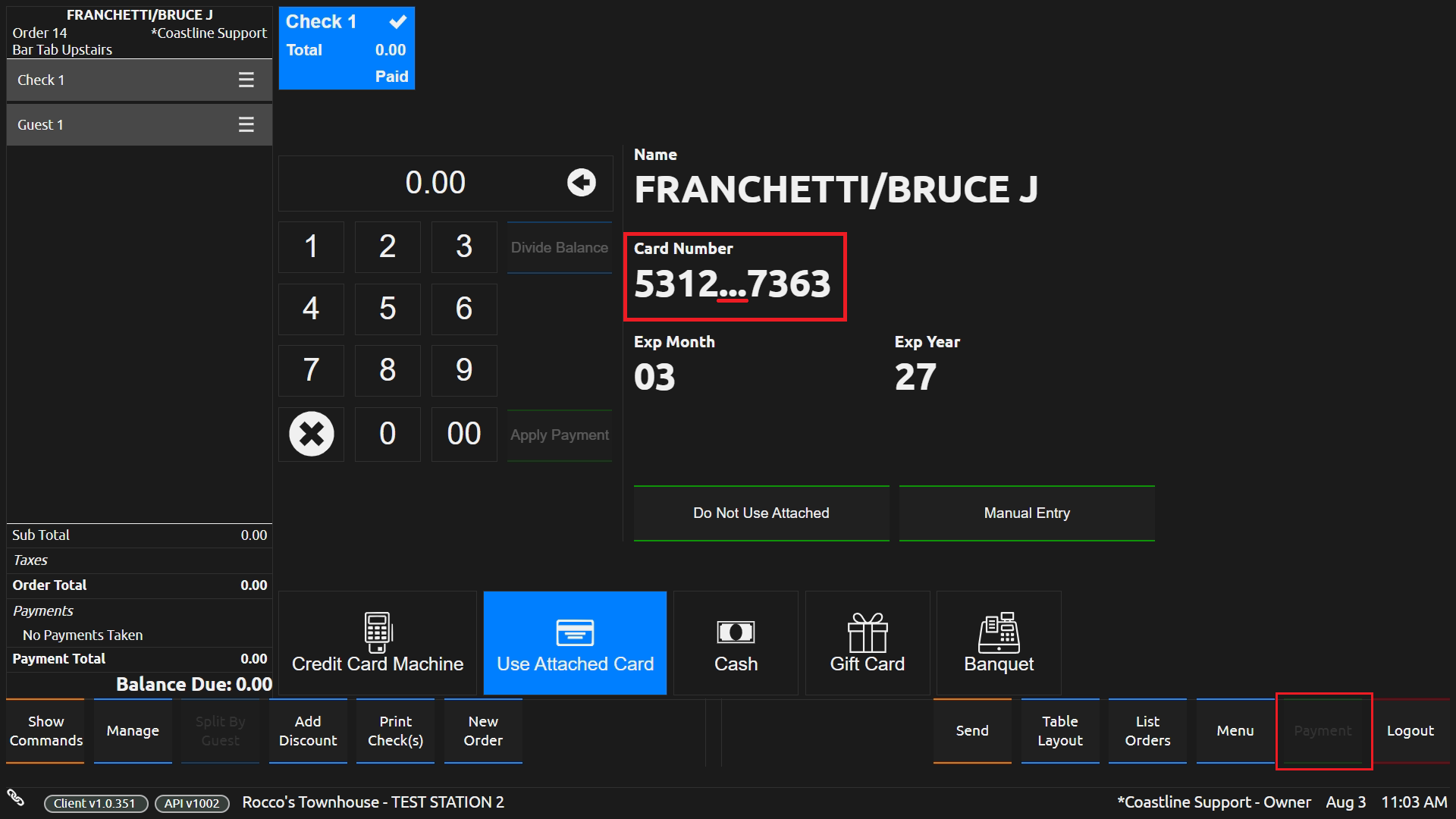
Step 4: To retrieve an open tab simply select it in the list of open orders, use the search bar to search the name of the tab, or swipe the same card that was used to start the tab initially.
Step 5: To close a tab, locate the tab using any of the methods listed in Step 4. If you would like to use the card number that was captured when the tab was first opened, select the Use Attached Card payment method. Then select "Apply Payment." The tab will then be closed. You may go back and adjust the tip if needed.
NOTE: You must use the "Use Attached Card" payment method to use the attached card. The "Credit Card Machine" payment method will not use the stored card information and will result in an error. Only the "Use Attached Card" payment method will use the stored card information.
Step 6: To close a tab using a different card from the one used to initially open the tab, Select "Payment." Next, select "Do Not Use Attached." You will see the attached card information clear. Then select "Credit Card Machine." Finally select "Apply Payment." The tab will then be closed. You may go back and adjust the tip if needed.
Related Articles
SpotOn Gift Card Contact Information
To Order Gift Cards Email: giftcards@spoton.com The location's Logo will need to be emailed also. Here are the pricing for gift cards 50 cards to 99 cards: $0.85 each +$15 for shipping 100 cards to 499 cards: $0.75 each + $15 for shipping 500 cards ...Using A Scale
In This Article, We will go through the steps necessary to program an item with a PLU through the Scale and use it after being programmed. 1) Press “Mode” key Twice, That Will Put you into the Programming Screen for PLU Items 2) Enter the PLU Number ...Delivery Setup for Durazzo's
Making a Delivery Order: 1) Select New order select “Change Order Type” and choose delivery 2) Add items to the order from the menu screen and Press "Customer Info" 4) Enter in the customer information “First Name” Will be the Address “Last Name” ...Edit Modifier Prices
1.) Log into the Back of House 2.) Select Modifier Groups 3.) Select a group and select edit modifiers 4.) Click on the modifiers that need to be adjusted and edit the Price 5.) Click On the Modifier Group Tab to go backHandheld Mobile & Cellular Settings
STEP 1: Close out of the SpotOn App by selecting the circle on the bottom of the screen STEP 2: On the home screen, select "Settings." STEP 3: Under the "Settings" screen, select "Network and Internet." STEP 4: Select "Mobile Network under the ...